Shopware 6 or Shopify?
Many merchants on Shopware 5 face a choice: upgrade to Shopware 6 or switch platforms altogether. Both are sizeable projects. Shopware gives you more control over servers and code, and in return you take care of hosting, updates and security. Shopify takes care of those, and in return you work within the platform’s rules and pay monthly fees for Shopify and apps.
1. Take inventory
- Which data has to move? Products with variants and images, categories, customers, order history, gift cards, reviews, CMS pages and blog.
- Which plugins do you use, and is there a Shopify standard feature or app for each?
- Which systems are connected to the store? Inventory or ERP, shipping, accounting, newsletter.
- Do you have special features such as B2B pricing, product configurators or custom price calculations? On Shopify these often need an app or a custom solution.
2. Plan the data model
Shopify is structured differently from Shopware. Categories become collections, filled manually or by rules. Additional product fields and properties go into metafields. Settle this mapping before you import. Restructuring afterwards is far more work.
3. Move the data
Depending on the amount of data, there are three ways:
- CSV import: import products and customers directly in the Shopify admin.
- Import apps: apps such as Matrixify or dedicated migration apps also handle orders, redirects and metafields.
- Custom script: for large or unusual data sets, the import is written against the Admin API.
Do at least one test run and check samples before the final import.
4. Customer accounts and passwords
Passwords cannot be migrated. That is less of a problem than it sounds: with Shopify’s customer accounts, customers sign in with their email address and a one-time code, no password needed.
Pay attention to newsletter consent when importing customers. Only carry over consent you can prove.
5. SEO: don’t forget redirects
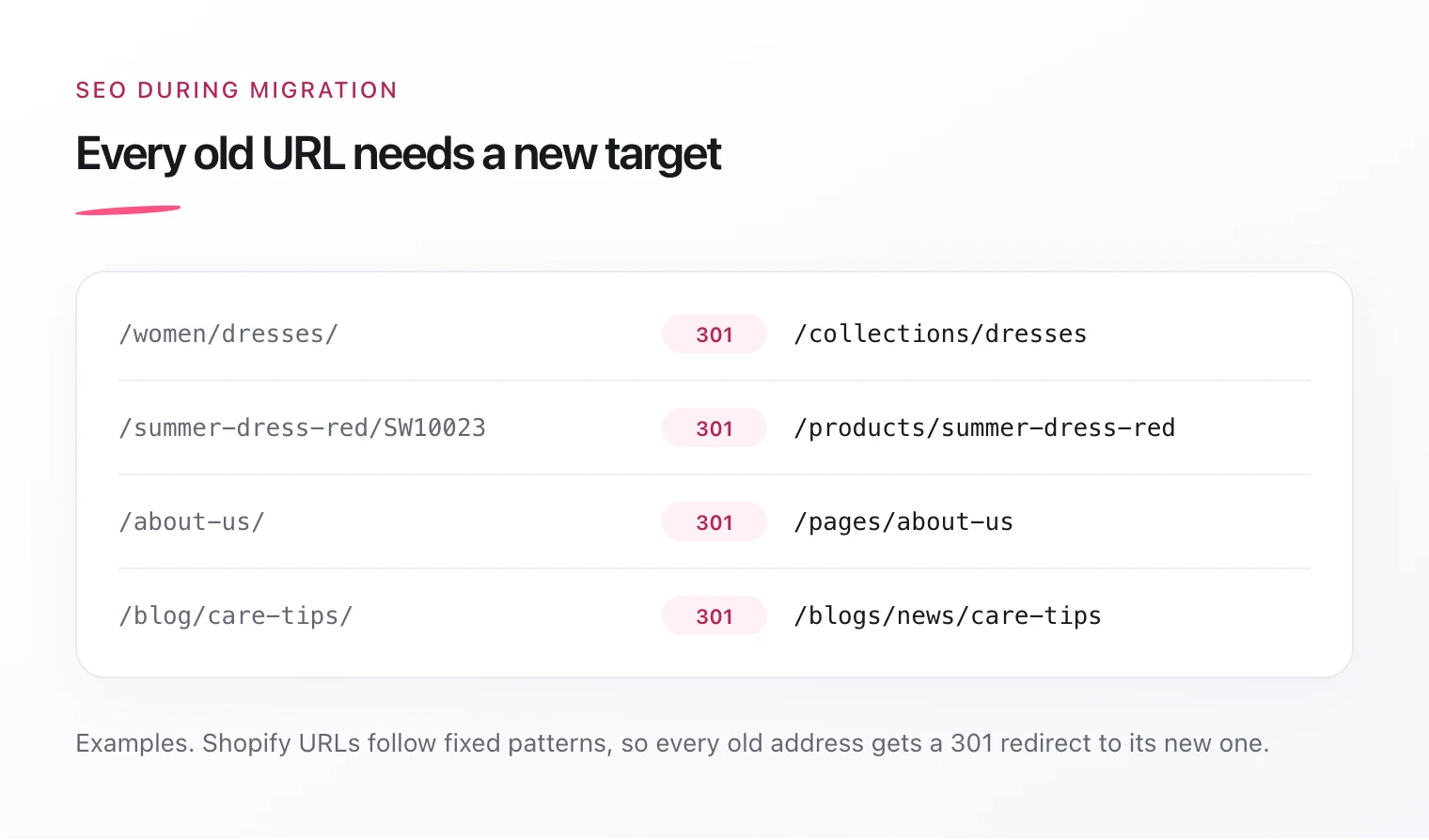
This is the most important point. Shopify uses fixed URL patterns such as /products/, /collections/ and /pages/, so your old Shopware URLs stop working after the move. Without redirects you lose rankings and backlinks.
- Export every old URL, for example from your sitemap, Google Search Console and a crawl of your store.
- Map each old URL to the matching new one, especially pages with traffic and backlinks.
- Import the list into Shopify as 301 redirects via CSV.
- Carry over page titles, meta descriptions and image alt texts.
- After go-live, submit the new sitemap in Search Console and watch for 404 errors in the first weeks.
6. Legal, tax and payments
- Legal texts: if you sell in Germany, your imprint, privacy policy, terms and cancellation policy have to match the new store, for example its payment providers and apps. Have them updated by a lawyer or a legal text service.
- Cookie banner: the banner must work with Shopify’s consent management so tracking only starts after consent.
- Tax: set up your tax rates and check with your tax adviser what applies to sales to other EU countries.
- Payment methods: check which payment methods your customers use today and set them up before launch.
7. Go-live
- Test orders with every payment method
- Check the email templates for orders, shipping and accounts in every language you sell in
- Point your domain to Shopify
- Spot-check your redirects
- Check tracking and the cookie banner
- Keep the old store for a while as a non-public backup