Why you should keep your theme up to date
Shopify keeps developing its themes. New versions add features to the theme editor, fix bugs, improve speed and accessibility, and keep the theme compatible with new Shopify features and app blocks. Skip updates for two or three years and you build up a large backlog, and every update gets harder.
How Shopify delivers theme updates
For themes from the Theme Store, including Dawn, there are two paths:
- Automatic update: if every theme file except
settings_data.jsonand the JSON templates is in its original state, Shopify replaces your theme with the new version directly. - Update on a copy: if code files were changed, Shopify shows a notice under Online Store > Themes. The update is then added to your theme library as an unpublished copy that you review and publish yourself.
Settings and content from the theme editor are carried over. Changes made directly in the code, in Liquid, CSS or JavaScript files, are missing from the new version. Those are the ones you have to bring over yourself.
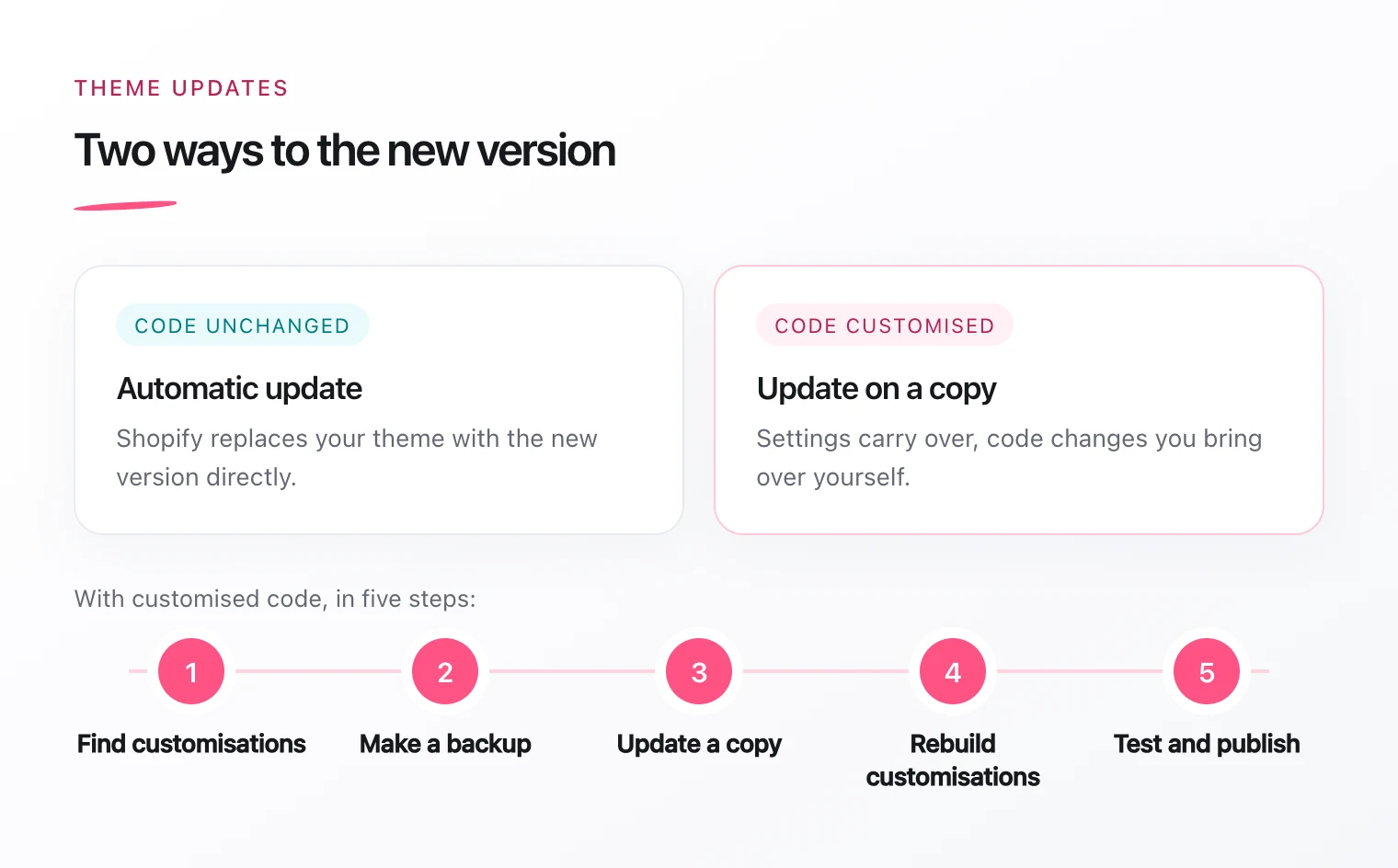
Step 1: Find out what was customised
Before you update, you need a list of every code change. Often nobody remembers which agency or freelancer changed what and when.
- Check your theme’s version. It is shown in the theme library and in
config/settings_schema.jsonundertheme_version. - Download your theme with Shopify CLI:
shopify theme pull. - Get the original version with the same version number. For Dawn, every version is in Shopify’s public GitHub repository.
- Compare both folders, for example with
git diff --no-index dawn-original/ my-theme/.
The result is a list of every changed and added file. You can ignore settings_data.json and the JSON templates; Shopify carries those over.
Step 2: Make a backup
Duplicate your current theme in the theme library and also download it as a ZIP file. That way you can always go back if something is off after publishing.
Step 3: Apply the update to a copy
Start the update from the notice in the theme library. Shopify adds the new version as an unpublished theme. Your live store is not affected.
Step 4: Rebuild your customisations
Now bring the changes from step 1 into the new version. Don’t simply copy the old files over the new ones. That would overwrite exactly the improvements you are updating for. Bring over each change on purpose.
Use the opportunity to make your customisations easier to update next time:
- Put your own features in their own sections, blocks or snippets instead of changing original files.
- Give your own files a prefix such as
custom-so they stand out at the next update. - Check whether a customisation is still needed, because the theme now does it itself or an app provides it as an app block.
Step 5: Test thoroughly
Open the preview of the new version and go through every important page:
- Home page, collections and product pages with different variants
- Cart, search and customer account
- How everything looks on a phone
- Apps that are visible in the store, such as reviews or product recommendations
- Translations and, if you have them, other markets and currencies
- Tracking and the cookie banner
Publish the new version at a quiet time and keep the old one in the theme library until everything runs smoothly.
Dawn or Horizon?
Shopify now also offers Horizon, a newer theme. Moving from Dawn to Horizon is not an update but a theme switch: you set up sections and settings again. That pays off if you are planning a redesign anyway. If you only want to stay current, updating within Dawn is the smaller step. More in my post on building Shopify themes with AI agents.
How long does a theme update take?
It depends on the number of customisations. A barely changed theme can often be updated and tested in a few hours. With many changes made over several years, it can take a few days. The inventory from step 1 quickly shows you what to expect.